📕 Chapter 7: Sports Trading
🎓 Lesson 1: Trading
🎯 Objectives
By the end of this lesson, you'll be able to:
- Open the OddsFantasy Sports Trading workspace.
- Find a sport, event, market, and outcome to trade.
- Understand the main parts of the trade modal.
- Know when to use Market, Limit, and Quote orders.
🧭 Introduction
OddsFantasy is not just a bookmaker comparison tool. It also includes a full sports trading workflow where you can:
- Browse live and pre-match markets
- Open buy or sell positions
- Set take-profit and stop-loss levels
- Manage active trades from Positions and Orders
This chapter walks through that workflow from the first screen all the way to tracking what you placed.
🚪 How to Open Sports Trading
You can reach the trading workspace in two main ways:
- Click Get Started from the home page.
- Open Sports Trading from the main navigation.
This takes you to the main trading page at 🔗 Sports Trading.
🧱 Understanding the Trading Layout
The trading page is built around a few core areas.
Header
At the top of the page, you'll see:
- Trade: returns to the main trading workspace
- Positions: opens your active and closed trades
- Orders: opens your limit and time orders
- How to Trade: opens a short in-app guide
- Wallet: opens deposit and withdrawal actions
- Connect Wallet / Disconnect: connects the trading wallet
If this is your first time trading, connect your wallet first and fund it before submitting orders.

Sports Bar
The sports bar lets you switch between available trading categories such as:
- American Football
- Baseball
- Basketball
- Boxing
- Chess
- Cricket
- Esports
- Football
- Golf
- Ice Hockey
- MMA
- Motorsports
- Other
- Rugby
- Tennis
Selecting a sport updates the event list in the sidebar.

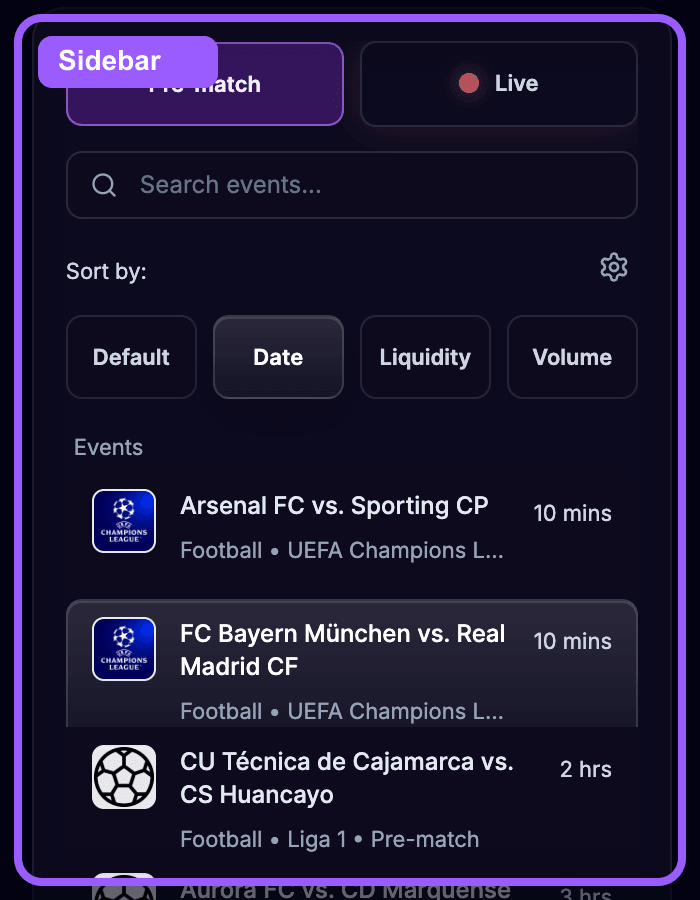
Sidebar
The left sidebar helps you find tradable events quickly. You can:
- Toggle between Pre-Match and Live
- Use Search Match to find a team or event
- Sort events by date, liquidity, or volume
- Apply Filters for date, liquidity, and volume
🎯 Understanding the Event View
Once you select an event, the center panel loads the event view.
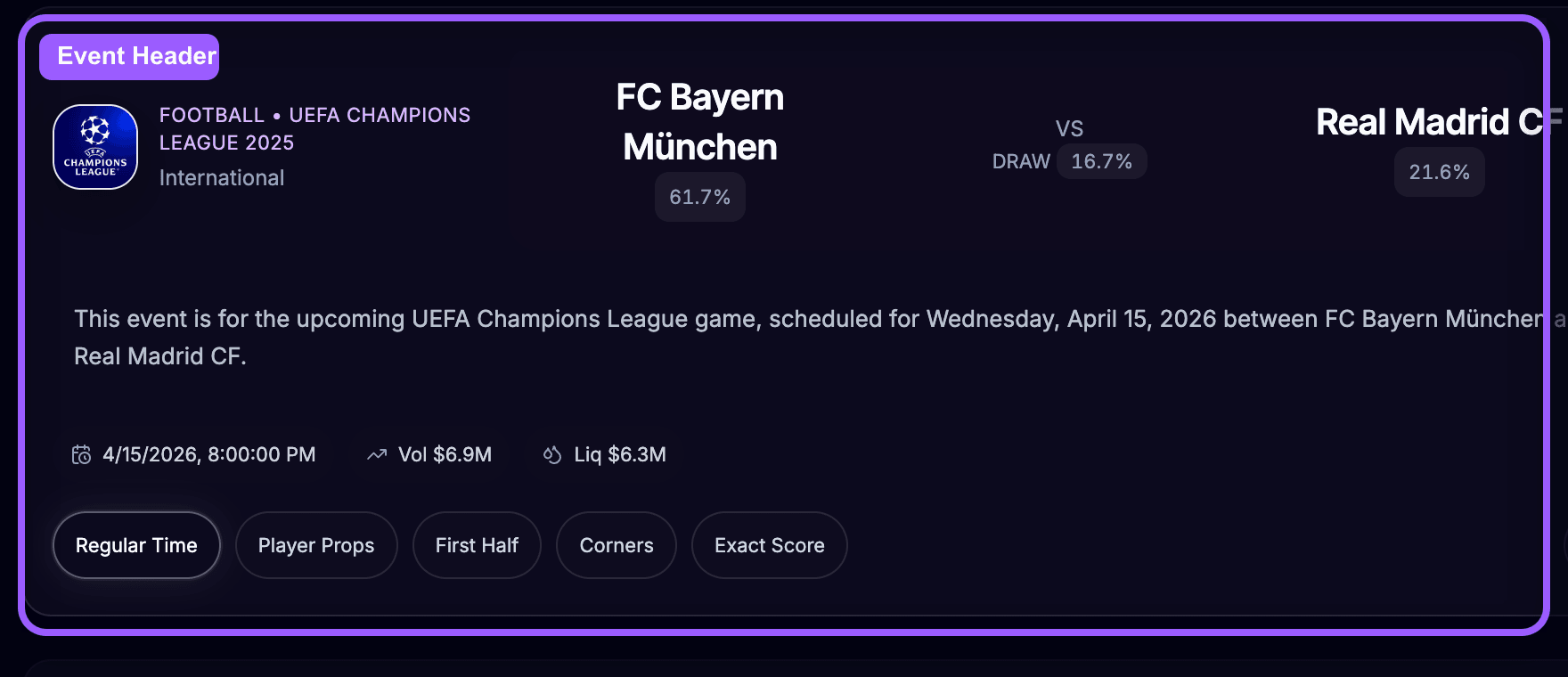
Event Header
The header gives you the main context for the trade:
- Sport
- League
- Country or competition context
- Teams or competitors
- Event description
- Start time
- Total liquidity
- Total volume
- Relevant scoreboards
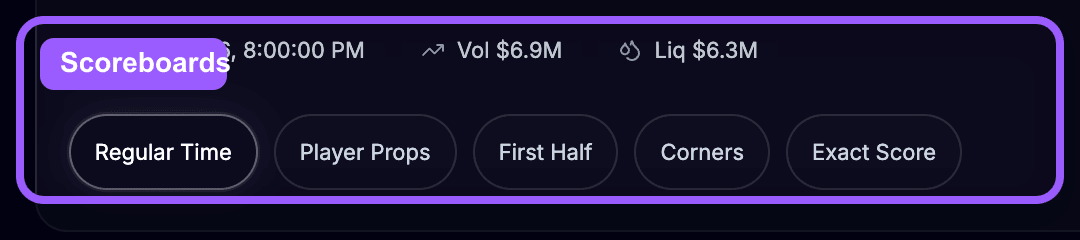
Scoreboards
Markets are grouped into scoreboard sections depending on the sport. Common examples include:
- Regular Time
- First Half
- Second Half
- Corners
- Player Props
- Team Props
- First Set
- Second Set
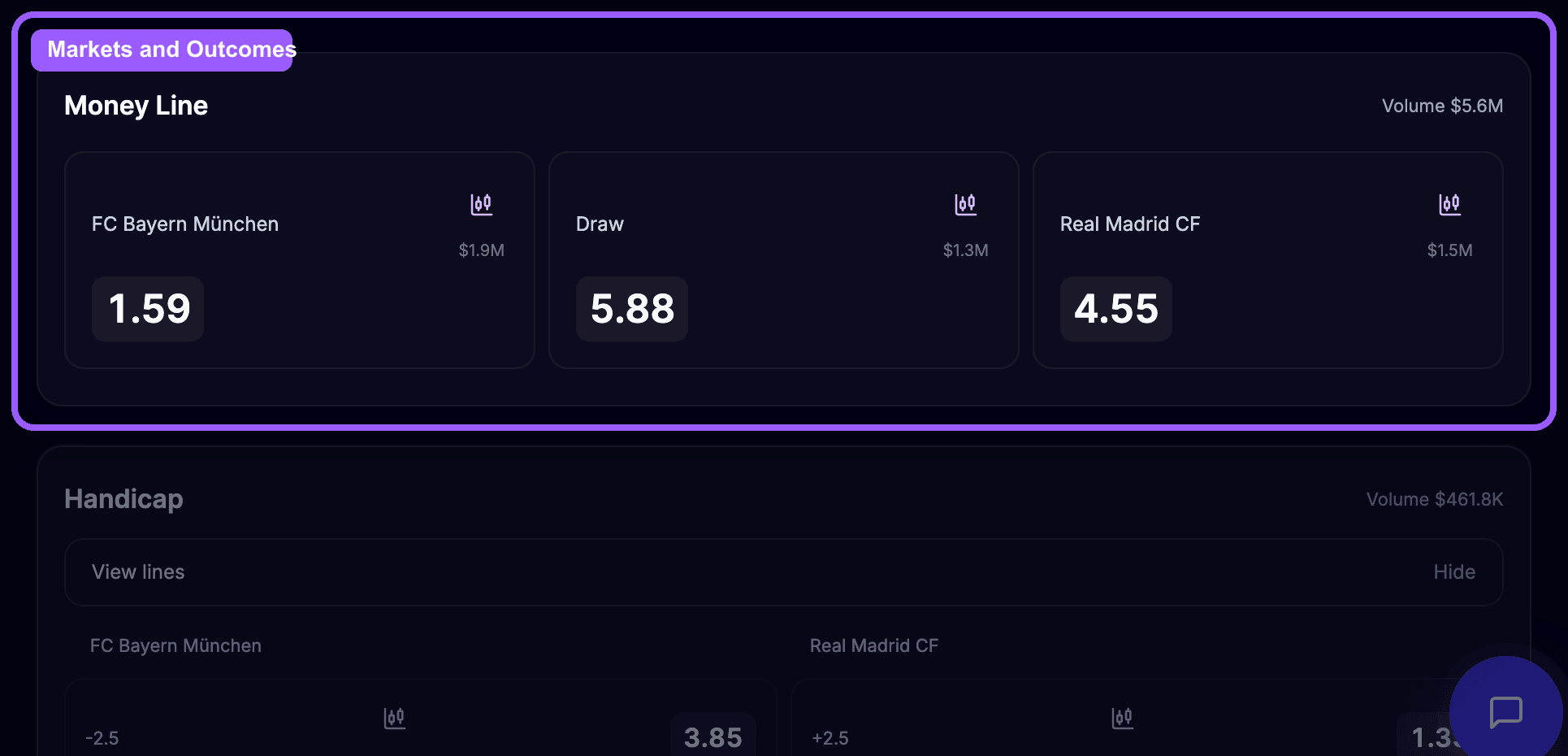
Markets and Outcomes
Inside each scoreboard, OddsFantasy lists the available markets, such as:
- Money Line
- Handicap
- Total
- Both Teams To Score
- Exact Score
Each market contains the tradeable outcomes. For example:
- Football moneyline may show Home / Draw / Away
- Basketball moneyline usually shows Home / Away
When you click the trade button on an outcome, OddsFantasy opens the trade modal.
📈 Understanding the Trade Modal
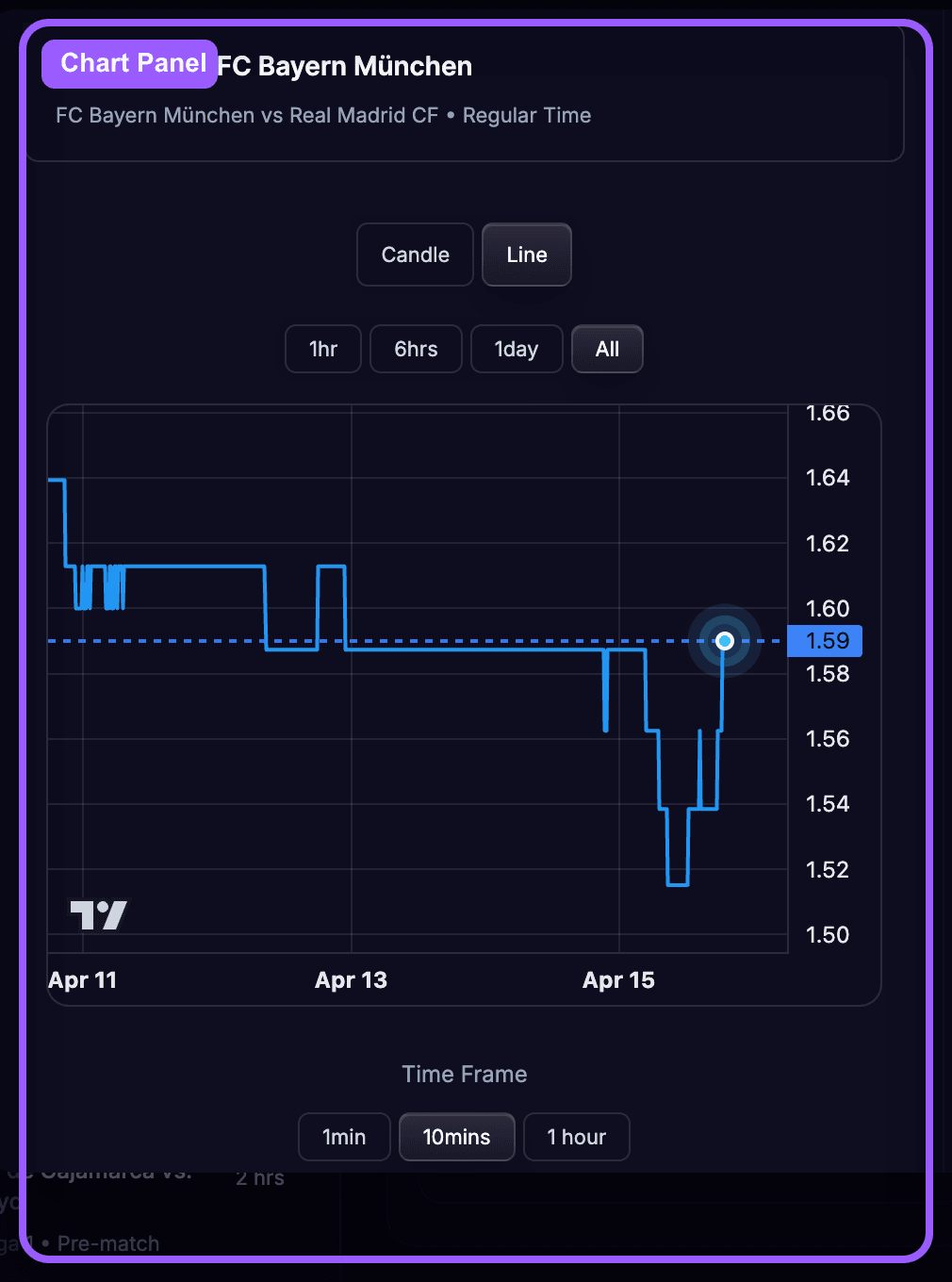
The trade modal has two working areas: a chart panel and a trade panel.
Chart Panel
The chart panel shows:
- The selected event, market, and outcome
- The scoreboard the market belongs to
- Candlestick or line chart views
- Time ranges such as 1 hour, 6 hours, 1 day, or max
- Market rules
This is where you read the recent odds movement before placing the trade.
Trade Panel
The trade panel shows the live pricing and lets you submit the order.
You will see:
- Buy and Sell quotes
- Available liquidity on each side
- The current spread
- Order inputs such as stake, odds, expiration, take-profit, and stop-loss
Inside OddsFantasy:
- A buy position means you expect the displayed market odds to increase
- A sell position means you expect the displayed market odds to decrease
The in-app How to Trade modal uses the same definitions, so keep your focus on the direction of the odds movement when choosing a side.
🧾 Order Types
OddsFantasy supports three main order types inside the trade modal.
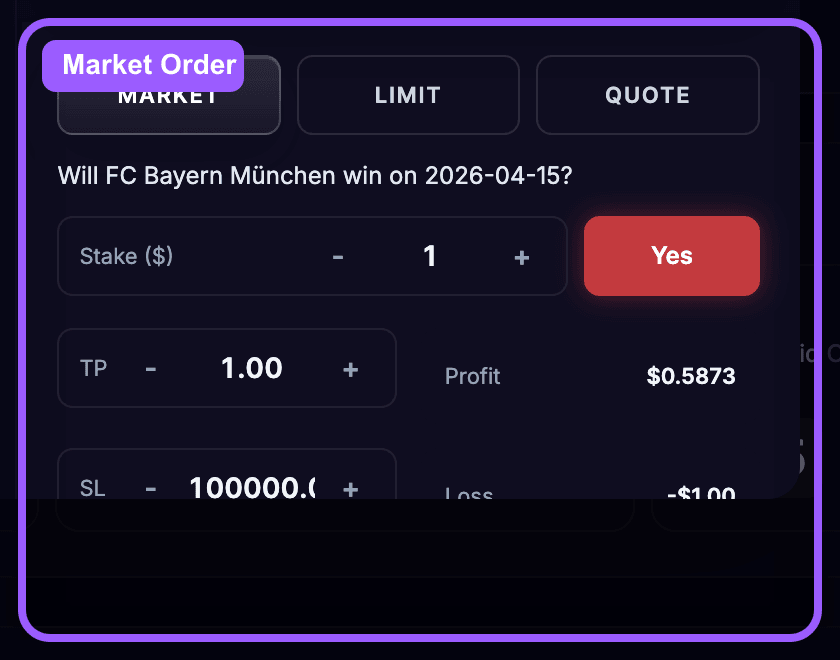
1. Market Order
Use a Market order when you want to enter immediately at the current market odds.
Typical inputs:
- Stake
- Optional take-profit
- Optional stop-loss
This is the fastest way to enter a trade, but you are accepting the current spread.
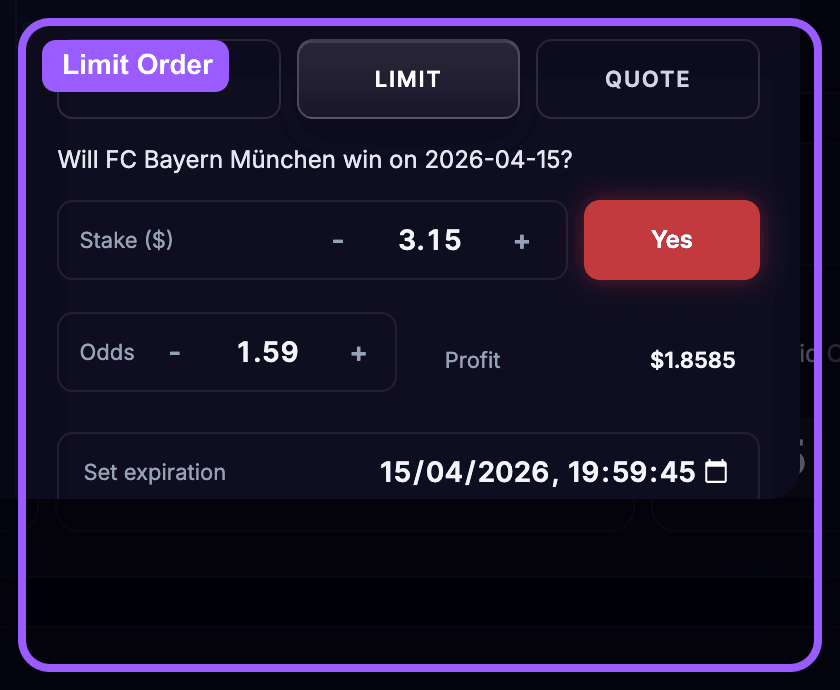
2. Limit Order
Use a Limit order when you only want to enter at your chosen odds.
Typical inputs:
- Stake
- Limit odds
- Expiration time
The order stays open until it is matched, cancelled, or expires.
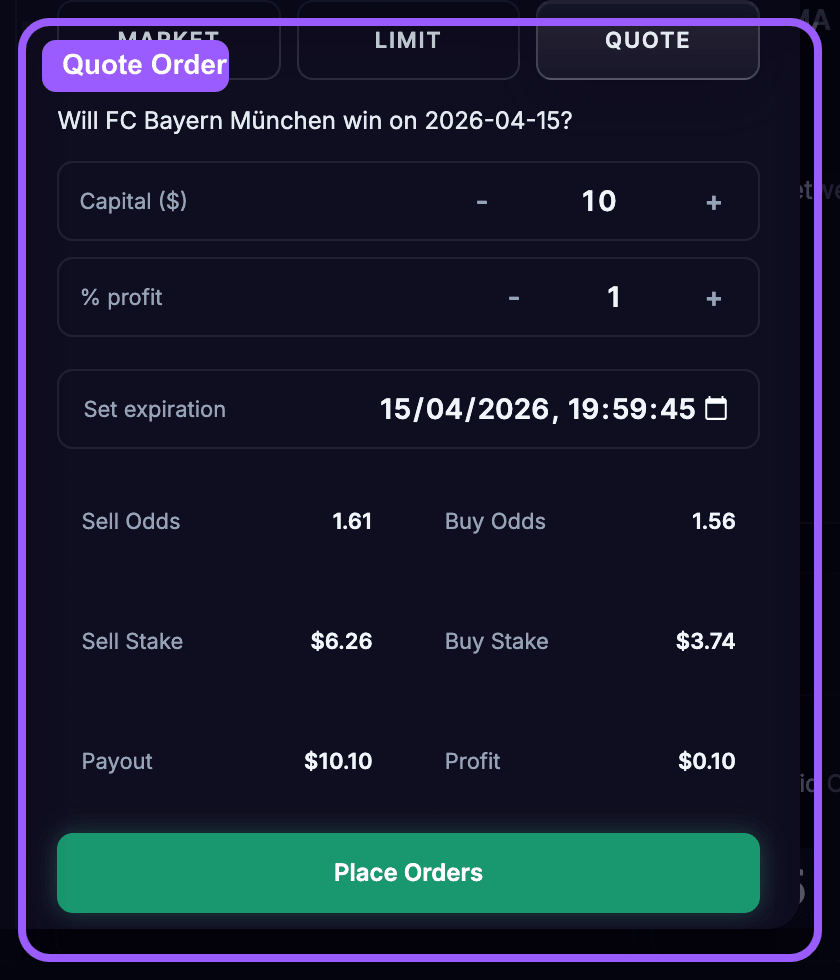
3. Quote Order
Use Quote when you want to place both sides of the trade and target spread profit.
Typical inputs:
- Capital
- Target profit percentage
OddsFantasy calculates the quote levels and stake split for you.
🚀 Your First Trading Workflow
Here is the simplest way to use the page:
- Open 🔗 Sports Trading.
- Connect your wallet and make sure it is funded.
- Choose a sport from the sports bar.
- Find an event from the sidebar.
- Select a market such as Money Line, Handicap, or Total.
- Click the trade button on the outcome you want.
- Choose Buy or Sell.
- Pick an order type: Market, Limit, or Quote.
- Enter the required inputs and submit the trade.
- Open Positions or Orders to manage what you placed.
💡 Helpful Reminder
OddsFantasy's in-app help notes that odds data and liquidity are aggregated from prediction markets. That matters because prices can move quickly, especially on live events and thin markets.
🔁 Recap
You now know how to:
- Open the sports trading workspace
- Use the header, sports bar, sidebar, and event view
- Read the main parts of the trade modal
- Choose between Market, Limit, and Quote orders
🔮 Next Lesson Preview
Once a trade is submitted, your next job is to manage it properly.
In the next lesson, you'll learn how to use the Positions page to:
- Monitor open trades
- Close positions
- Redeem settled positions
- Merge hedged positions
⏭️ Next
