Logo

🎓 Lesson 2: Positions

🎯 Objectives

By the end of this lesson, you'll be able to:

  • Monitor your active and completed trades
  • Understand the difference between Open Positions and Closed Positions
  • Use the main position management actions in OddsFantasy

🧭 Introduction

After you submit a trade, the Positions page becomes your control center.

This is where you check:

  • Whether a trade is still open
  • How much it is up or down
  • Whether it is hedged
  • When and how to close it

Open the page from the trading header or go directly to 🔗 Positions.

📂 Open Positions

The Open Positions tab lists trades that are still active.

Each row gives you the key information you need to manage risk:

  • Market title
  • Selected outcome
  • Position type
  • Entry odds
  • Event start time
  • Current or best bid odds
  • Stake
  • Potential profit
  • Current PnL

You can also search and sort positions to focus on the ones that matter most.
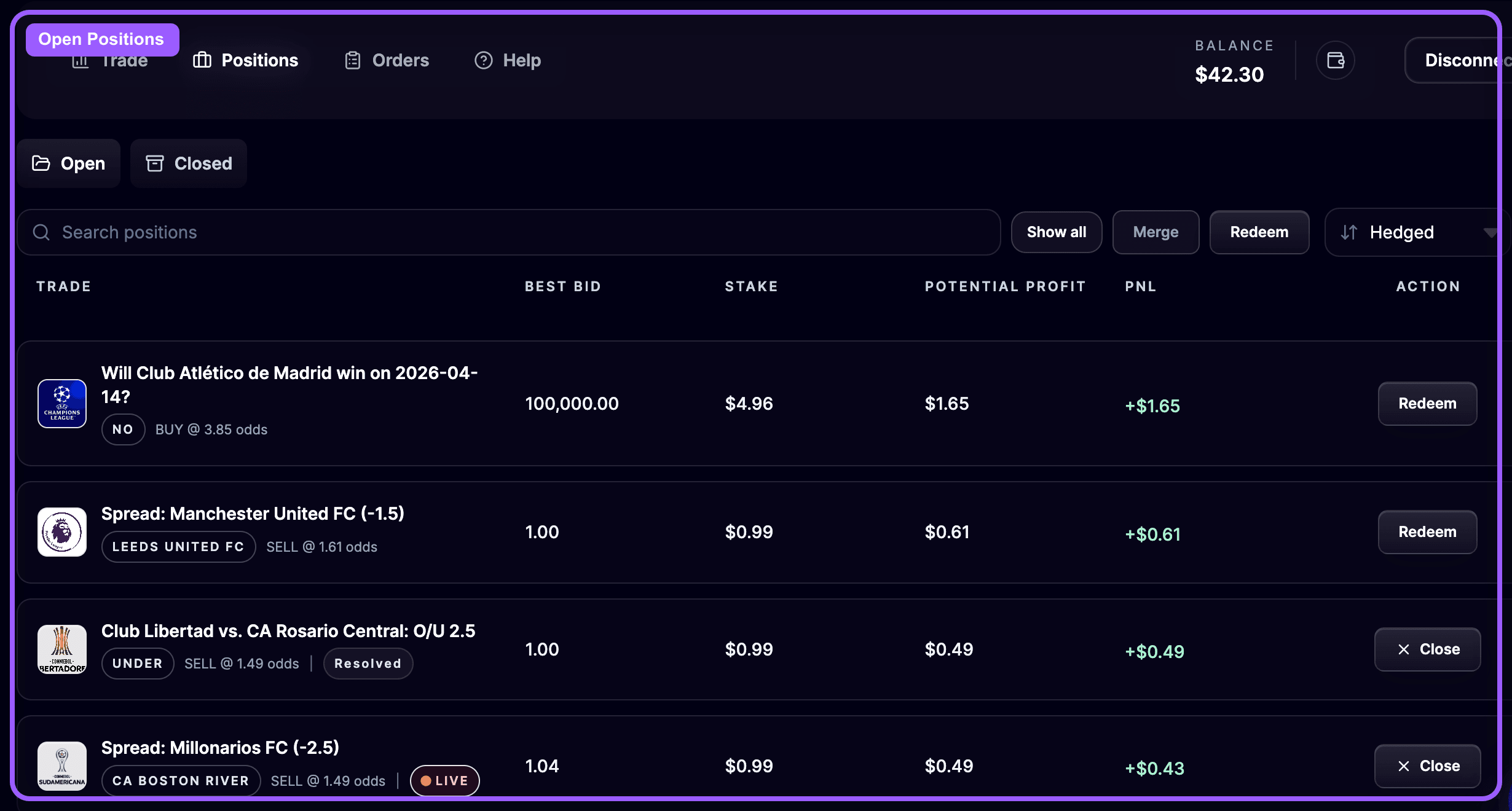
Open positions highlight

đŸ› ïž Ways to Manage an Open Position

OddsFantasy gives you several ways to exit or clean up an active trade.

1. Market Close

Use Market close when you want to exit immediately at the current market price.

This is the quickest option when:

  • You want instant exposure reduction
  • The market is moving fast
  • You are near event start time and do not want to wait

Before confirmation, OddsFantasy calculates the expected payout and resulting PnL.
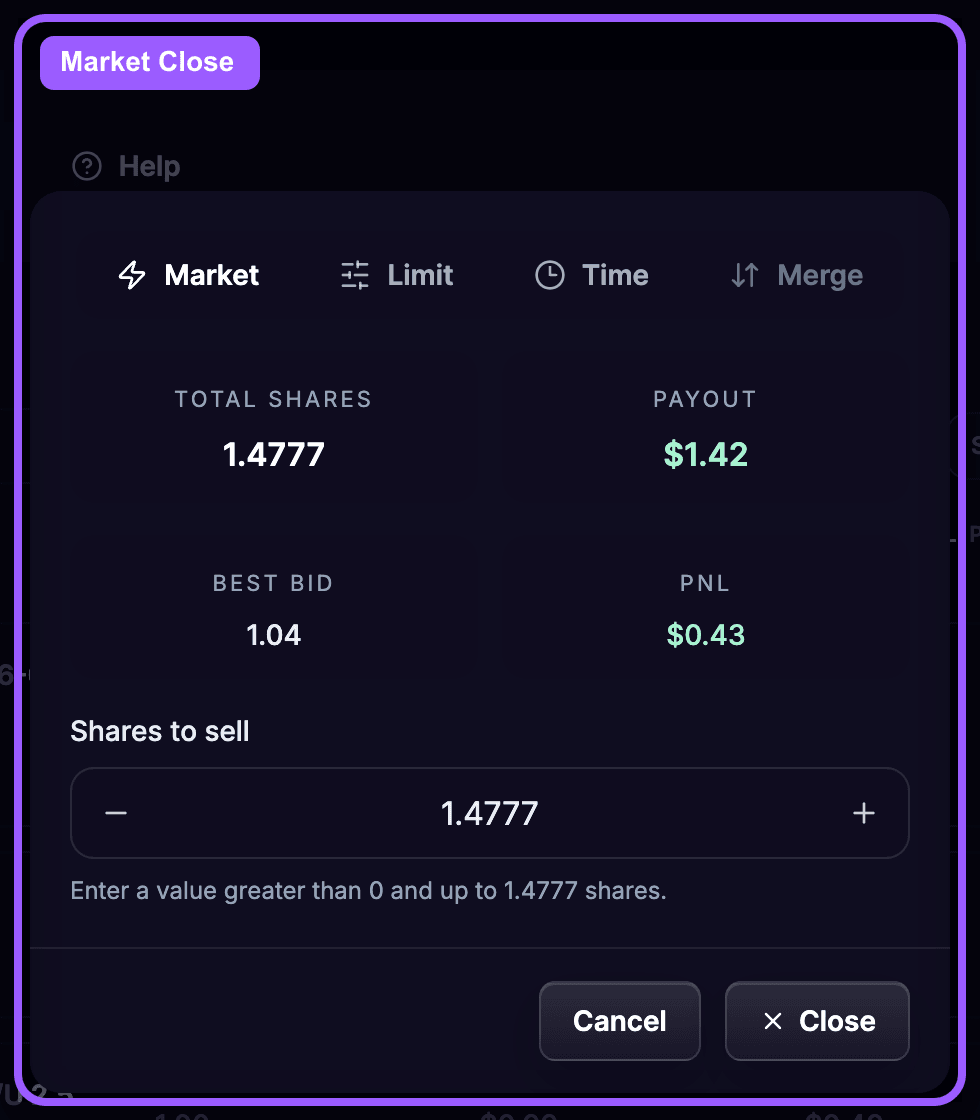
Market close highlight

2. Limit Close

Use Limit close when you only want to exit if the market reaches your chosen odds.

This is useful when:

  • You have a target exit price
  • You want more control than a market close
  • You are willing to wait for a better fill

OddsFantasy shows the expected payout and PnL for the closing price you enter.
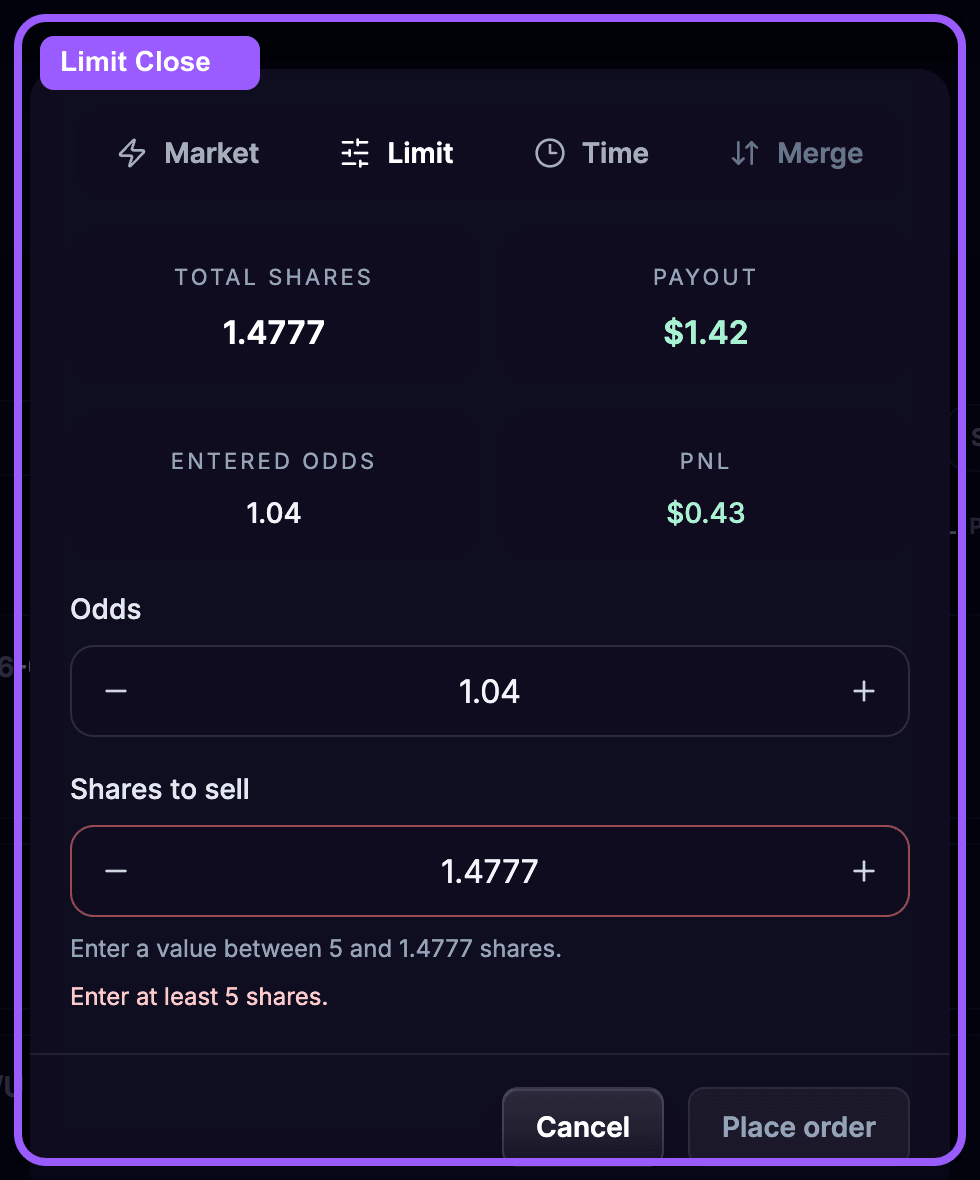
Limit close highlight

3. Time Close

Use Time close when you want the position to close at a scheduled time.

This is useful when:
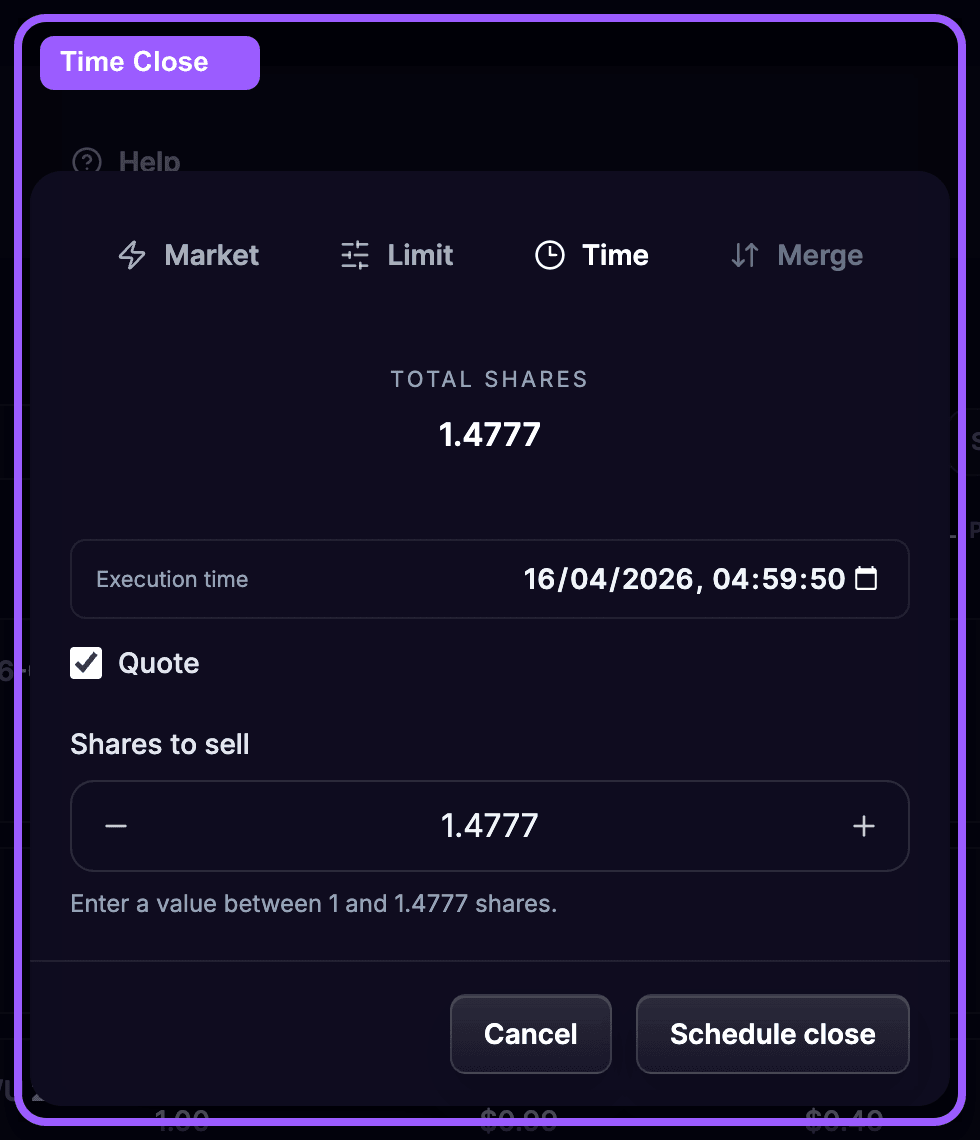
  • You want the trade closed before the match starts
  • You cannot monitor the screen manually
  • You are managing a quote workflow and want the system to handle the timing

Time close highlight

4. Merge

Use Merge when you hold opposite positions on the same market and want to lock in the spread profit.

This is especially useful after both sides of a Quote setup have filled.

5. Redeem

Once a market has resolved and a payout is available, you can redeem the settled position from the same page.

🚩 Position Status Indicators

OddsFantasy uses color indicators to help you read hedge status quickly:

  • Red: the position is not hedged and remains exposed
  • Yellow: the position is not fully hedged, but an open limit order may complete the hedge
  • Green: the position is fully hedged

When you close an unhedged position, OddsFantasy can pre-fill the exposed share amount so you do not accidentally close profitable hedged shares unnecessarily.

✅ Closed Positions

The Closed Positions tab shows trades that have already been closed.

You can use it to review:

  • Trade information
  • Best bid or closing context
  • Stake
  • PnL
  • Final result

This view is useful for reviewing execution quality before you move to broader performance analysis in the tracker.
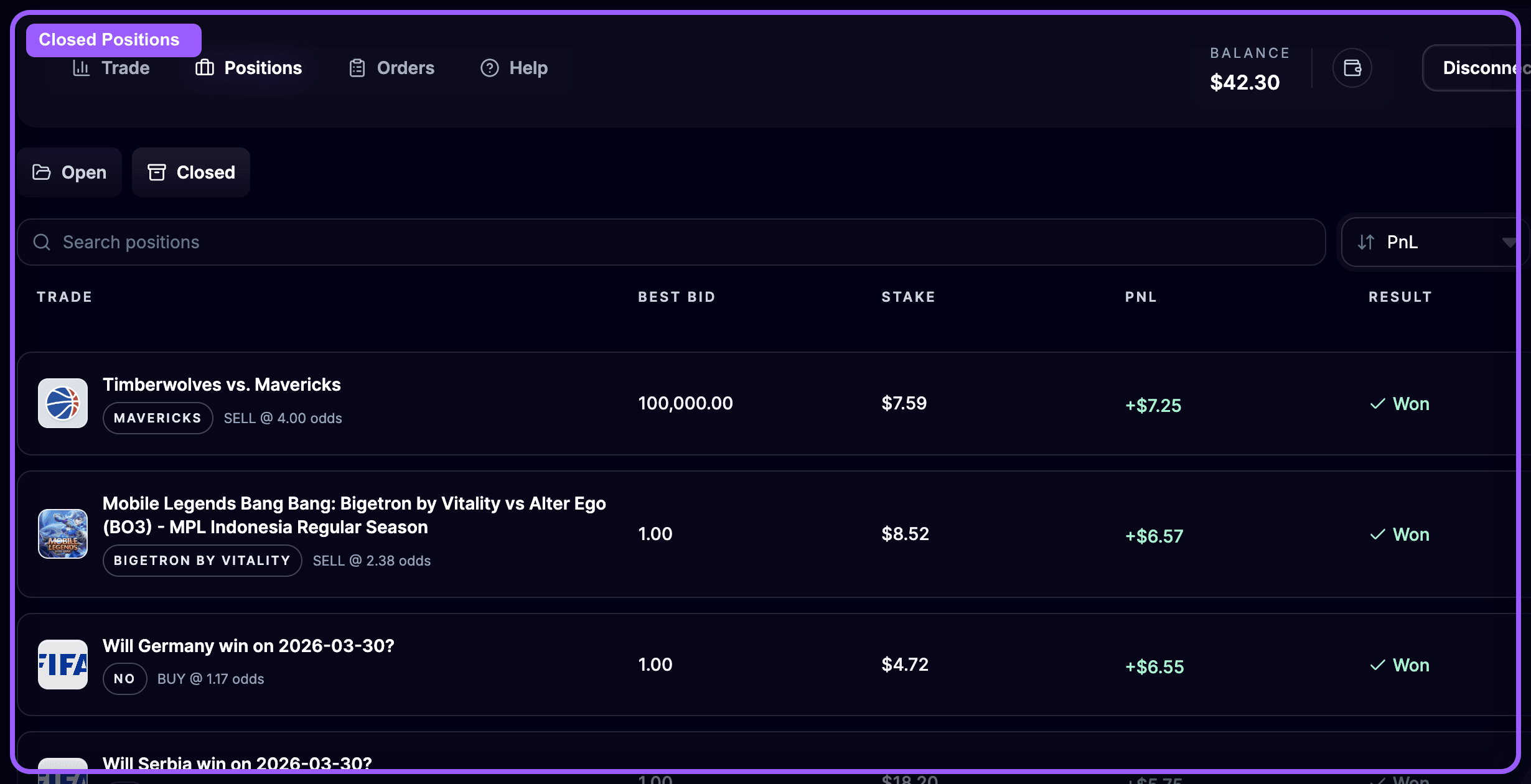
Closed positions highlight

🧭 A Practical Routine

A simple way to use the Positions page is:

  1. Open the page after submitting a trade.
  2. Check whether the position is open and how the PnL is moving.
  3. Decide whether you want a market close, limit close, or time close.
  4. If both sides of a quoted setup fill, use merge where appropriate.
  5. Once the market resolves, redeem any settled positions.

🔁 Recap

The Positions page is where you:

  • Monitor open risk
  • Check PnL
  • Close trades
  • Merge hedged positions
  • Redeem settled outcomes

🔼 Next Lesson Preview

Not every order turns into a position immediately. In the next lesson, you'll learn how to use the Orders page to manage:

  • Unmatched limit orders
  • Scheduled time orders
  • Cancellations and timing updates

⏭ Next